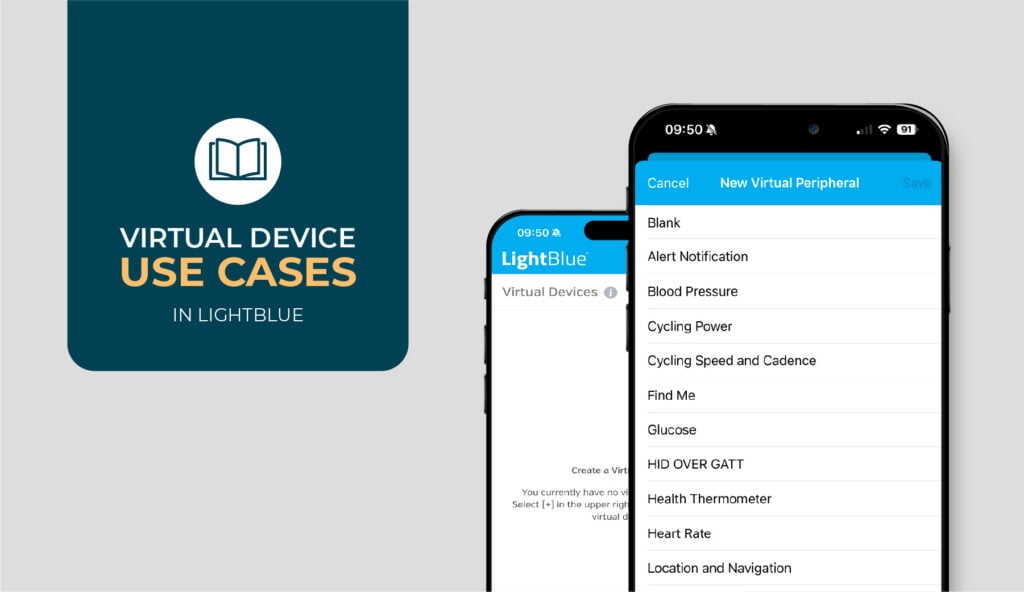
Virtual Devices let you simulate a BLE peripheral directly in LightBlue, no physical hardware required. It’s a feature that can meaningfully change how you work during certain stages of development, but it’s not a one-size-fits-all tool. This article walks through when they’re worth reaching for and when real hardware is the better call.
What Are Virtual Devices in LightBlue
A Virtual Device is a software-simulated BLE peripheral you can spin up directly inside LightBlue. Instead of connecting to a physical device, you define the peripheral yourself. Its name, its services, its characteristics, their UUIDs, properties, and values. Once you start advertising, it behaves like a real device on the BLE network: other devices can scan for it, connect to it, read and write its characteristics, and subscribe to notifications, all through your phone or computer’s actual Bluetooth radio.

You can build a Virtual Device from scratch or start from a pre-built template for common BLE profiles like heart rate monitors or thermometers. If you have a physical device but it’s not always accessible, you can also manually recreate its GATT profile as a Virtual Device with the same services, same characteristics, same UUIDs, so you can keep testing against a known structure without needing the hardware in hand.

The result is a controlled, configurable peripheral you can interact with on demand, without firmware, without hardware, and without the variables that come with both.
When to Use Virtual Devices in LightBlue
Your hardware isn’t ready yet
If you’re in early development and your physical device doesn’t exist yet, or exists in limited supply being shared across the team, Virtual Devices can keep you moving. You can build out your mobile app, test your BLE interaction model, and develop against a known structure without waiting on hardware. We use them this way regularly on our own projects; by the time real devices are ready, the app-side BLE logic is already well-tested and integration goes a lot more smoothly.
You need a repeatable, controlled test state
Real hardware can introduce variables that are hard to control, like battery state, firmware version, RF environment, or whatever quirk your device decided to have that morning. When you’re trying to isolate whether a problem lives in your application code versus somewhere else in the stack, those variables get in the way. A Virtual Device lets you define exact characteristic values and hold them constant, giving you a clean baseline to test against. If your app behaves correctly against the virtual device and incorrectly against real hardware, you’ve just meaningfully narrowed your problem space.
You’re building a demo or early prototype
Hardware can have a way of misbehaving at the worst possible moment – dropped connections, unexpected firmware states, a device that worked fine ten minutes ago, and now won’t advertise. When you’re showing a concept to stakeholders or walking a teammate through a BLE interaction, that unpredictability adds friction you don’t need. A Virtual Device gives you a stable, controlled peripheral that behaves exactly as configured, so the focus stays on the concept rather than the hardware.
You’re learning or exploring
If you’re getting up to speed on BLE or experimenting with a new GATT design, Virtual Devices let you move quickly without needing hardware in hand. We built this feature knowing that BLE has a steep enough learning curve on its own, and adding a hardware dependency on top of that just creates unnecessary friction. Being able to spin up a peripheral, poke at how services and characteristics behave, and experiment with different GATT structures in a live environment makes the learning process a lot more approachable. No firmware, no hardware budget, no waiting.
When Virtual Devices Aren’t the Right Tool
You’re debugging actual hardware behavior
If the bug is in your firmware, or you suspect it might be, a Virtual Device isn’t the right tool for the job. Virtual Devices simulate a peripheral, which makes them useful for testing your app or central against a known BLE structure. But if the issue is in your firmware, you need LightBlue connecting to your actual hardware, not a software stand-in. That’s a different workflow entirely, and one that other features in LightBlue are better-suited for. Our article on using LightBlue to debug your firmware walks through exactly that approach.
You need to test real-world RF conditions
A Virtual Device uses your phone or computer’s Bluetooth radio to advertise, which means it exists in a controlled software environment, not the physical world your actual device will operate in. Range, interference, signal degradation, and connection stability under real-world conditions aren’t things a Virtual Device can replicate. If you’re at the stage where you need to understand how your device performs across distance, in a noisy RF environment, or under the kind of load it’ll actually see in the field, that testing needs to happen with real hardware in real conditions. No software simulation can substitute for that.
You’re in integration testing or beyond
Virtual Devices tend to be an early-stage tool, and there’s a reason for that. When you test against a Virtual Device, you’re testing against something you fully control (perfect behavior, exact values, no unexpected states, etc.). That’s useful early on, but it means you’re not catching the gaps between your app and your actual firmware. Real hardware introduces timing, state machine behavior, and edge cases that a software simulation won’t surface. If you’re still leaning on Virtual Devices during integration testing, you might feel like everything is working when the harder validation simply hasn’t happened yet. By that stage, real hardware needs to be in the loop.
When You Need Both
There’s often a stretch in development where hardware exists but isn’t fully stable. It is being actively changed by the firmware team, available in limited quantities, or just unreliable enough that you can’t depend on it for every test. In that window, toggling between Virtual Devices and real hardware is a natural part of the workflow.
The way we’ve found it works best is to keep Virtual Devices in the loop for testing app-side logic, validating connection flows, or isolating a software behavior from a hardware variable and bringing real hardware in when you need to verify how your app and firmware actually behave together. Connection parameters, real-world data, anything that requires the physical device to be present.
The thing to stay conscious of is being deliberate about which environment you’re in and why. It’s easy to keep testing against a Virtual Device out of convenience when the real question you’re trying to answer actually requires hardware.
Where to Go From Here
If you’re ready to start using Virtual Devices, the How to Use Virtual Devices in LightBlue article walks through the full setup and workflow. If your situation calls for testing against real hardware instead, using LightBlue to debug your firmware covers that approach in depth. And if you’re still getting oriented with LightBlue more broadly, the LightBlue how-to guide is a good starting point.
The features tend to be more useful the more deliberately you apply them, and now you know where each one fits.