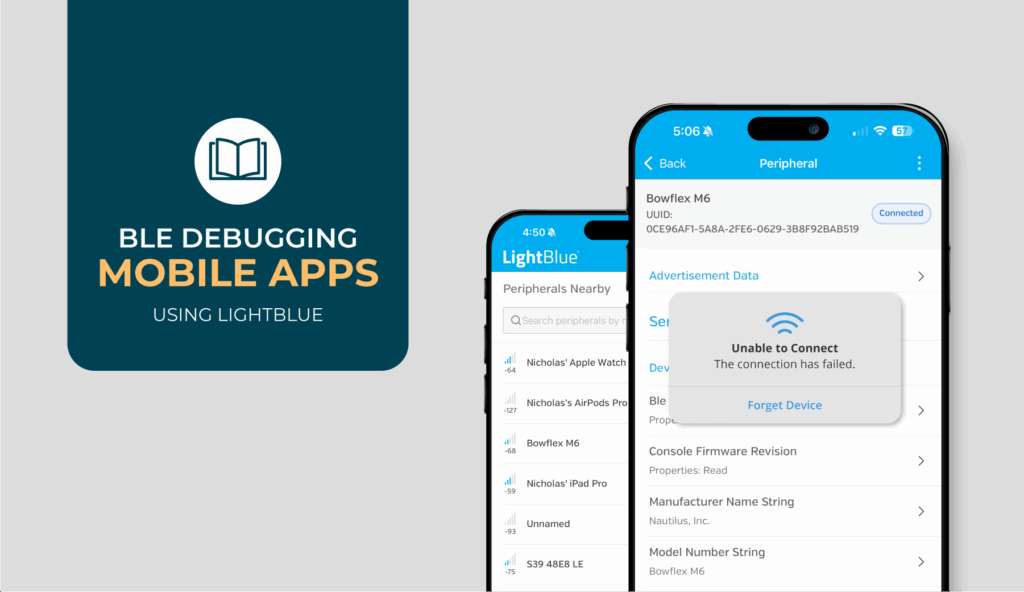
When your app won’t connect to a BLE peripheral, you need to know whether the problem is in your code or the device itself. LightBlue is a BLE central app that lets you test the peripheral independently. If LightBlue connects and your app doesn’t, the issue is in your app code.
This guide walks through common scenarios: connection failures, read/write issues, and notification problems. Each section shows what to test in LightBlue and how to interpret the results in your code. Now, let’s get to debugging.
How LightBlue Fits Into Your Debugging Workflow
LightBlue helps you isolate whether problems are in your app or the peripheral. The workflow is straightforward, you test the same operation in both environments and use the comparison to guide your debugging.
The basic debugging pattern looks like this:
- Reproduce the failure in your app – Make sure you can consistently trigger the problem
- Test the same operation with LightBlue – Can LightBlue do what your app can’t?
- Compare the results – What’s different? What does that reveal?
- Fix your app code based on what LightBlue showed you
- Verify the fix – Test again with both your app and LightBlue
Diagnostic Reference
When comparing results, use this as a reference. If LightBlue can do something your app can’t, here’s where to look:
| What LightBlue Does | Where to Look in Your App |
|---|---|
| Connects reliably | Connection callbacks, timeout settings, state machine, parameter negotiation |
| Sees complete GATT table | Service discovery calls, UUID matching, cache handling, discovery timing |
| Receives all notifications | CCCD write, callback registration, data parsing, thread handling |
| Handles large transfers smoothly | MTU negotiation calls, payload size validation, data chunking logic |
| Pairs and bonds successfully | Pairing callbacks, bond state storage, security level requirements |
| Reads and writes without errors | Characteristic properties, write type selection, data serialization |
Common Debugging Scenarios
Now let’s walk through the most common scenarios.
Your App Won’t Connect (Or Keeps Dropping the Connection)
Connection problems are usually the first wall you hit, and they’re frustrating because they block everything else. You can’t debug reads, writes, or notifications if you can’t even maintain a stable connection.
Start by opening LightBlue and scanning for your peripheral. Once it appears in the scan results, try connecting. Can LightBlue establish a connection? Does it stay connected for more than a few seconds? Try disconnecting and reconnecting a few times. Does it work consistently?
If LightBlue Connects Reliably
The peripheral is fine. The problem is in your app’s connection code. Here’s where to start:
Check your connection timeout settings: Some peripherals are slow to respond, and if your app isn’t giving the connection enough time to establish, it’ll fail. Look at whether you’re using default timeouts or if you need to extend them.
Verify your connection state callbacks: BLE connections go through multiple states, and it’s easy to miss a transition that leaves your app thinking it’s connected when it’s actually not. Make sure you’re handling all state changes correctly and that your app’s internal state tracking matches what the BLE stack is actually doing.
Look at connection parameter negotiation: This is especially common on Android. The central and peripheral need to agree on connection interval, latency, and supervision timeout. If your app isn’t handling this negotiation correctly, the connection might establish briefly and then immediately drop. LightBlue handles this correctly, which is why it stays connected when your app doesn’t.
Watch for timing issues: These are especially tricky because they can cause intermittent failures that are hard to reproduce. Common culprits include trying to connect before the peripheral has finished advertising, attempting a new connection while a previous one is still tearing down, or race conditions in your connection logic that only surface under certain timing conditions.
If LightBlue Can’t Connect Either
The problem is on the peripheral side. Firmware issues, configuration problems, or environmental factors like RF interference or distance. Check out our guide on Debugging BLE Peripherals with LightBlue and share what you’re seeing with your hardware team.
Services and Characteristics Aren’t Showing Up
You’ve successfully connected, but now your app can’t find the services or characteristics you need. Or service discovery fails entirely. Or the UUIDs don’t match what you expect.
Connect to your peripheral with LightBlue and look at what it discovers. LightBlue will show you the complete GATT table, including every service, characteristic, and descriptor. Take a screenshot or write down exactly what you see: the UUIDs, which characteristics are under which services, and what properties each characteristic has.
Compare What LightBlue Sees to What Your App Expects
Now look at what your app is searching for. These are the usual suspects:
- Hardcoded UUIDs that don’t match – Check for typos, wrong UUID formats (16-bit vs 128-bit), or string formatting issues
- Discovery not triggered correctly – After connecting, you need to explicitly request service discovery
- Timing problems – Are you trying to access services before discovery completes?
The Stale Cache Problem
One particularly sneaky problem is caching. Your app might be using cached GATT data from a previous connection instead of discovering fresh. If the peripheral’s firmware was updated and the GATT table changed, your app could be working with outdated information. LightBlue discovers the current state every time, which is why it sees the correct table.
Watch for these red flags that indicate a caching issue:
- It used to work but stopped working after a firmware update
- Reinstalling the app temporarily fixes it
- Other apps see the correct GATT table but yours doesn’t
If that sounds familiar, look at how your app handles cached service data and whether you’re forcing fresh discovery when appropriate. Different platforms handle caching differently and iOS is particularly aggressive about it.
You Can’t Read From or Write To Characteristics
You’ve gotten past connection and service discovery, but now, when you try to actually read or write data, operations time out, get rejected, or appear to succeed but don’t do anything.
Try the same read or write in LightBlue and pay attention to what it shows you about the characteristic’s properties. Can it be read? Written? Does it support write-with-response or write-without-response?
Match Your App’s Operations to the Characteristic Properties
If LightBlue can successfully read or write but your app can’t, start by checking a few common issues.
Check the characteristic properties: Common mistakes include trying to write to a read-only characteristic (or vice versa), calling writeWithResponse on a characteristic that only supports writeWithoutResponse, or not checking properties before attempting operations.
Verify your data format: Use LightBlue to send a test payload and watch what the peripheral does. Then compare those exact bytes to what your app is sending:
- Are you dealing with endianness problems? (big-endian vs little-endian)
- Is your app sending a string “1000” when it should be sending the integer as bytes?
- String encoding mismatches? (UTF-8 vs ASCII)
When the Write Succeeds But Nothing Happens
This one’s tricky. Your app’s write operation returns success, but the peripheral doesn’t respond the way you expect. Use LightBlue to send the same data and verify the peripheral actually responds correctly.
If LightBlue gets the expected response but your app doesn’t, you’re probably serializing data incorrectly. Check how you’re converting your data to bytes, and make sure the byte order and structure match what the peripheral expects.
Notifications Aren’t Arriving (Or Arrive Inconsistently)
Your app should be receiving notifications from the peripheral, but nothing’s happening. Or you get some notifications but not others. Or the data looks corrupted.
Connect with LightBlue and subscribe to notifications on the characteristic you’re testing. Then trigger whatever events on your peripheral should generate notifications, button presses, sensor readings, timers, whatever applies. Watch LightBlue’s notification log:
- Are notifications arriving?
- Is the timing right?
- Is the data correct?
If LightBlue Receives All Notifications Reliably
If LightBlue receives all notifications reliably, your app’s notification setup has issues. Here are a few things to check:
Did you actually enable notifications? This requires writing to the Client Characteristic Configuration Descriptor (CCCD). Just registering a notification callback in your app isn’t enough—you have to explicitly tell the peripheral to start sending notifications by writing the right value to the CCCD. It’s easy to forget this step.
Is your callback registered and being called? Set a breakpoint or add logging in your notification handler to verify it’s actually firing.
Platform-specific issues:
- iOS: Background state affects notification delivery
- Android: Notification callbacks happen on specific threads—if you’re doing heavy processing in the callback, you might block subsequent notifications
If Notifications Arrive But the Data Is Wrong
Compare the data LightBlue receives with what your app gets:
- Parsing problem: Check your data decoding logic
- Multi-notification reassembly: If your peripheral sends data across multiple notifications (common with streaming data or payloads larger than MTU), make sure your app is reassembling those notifications in the right order
Use LightBlue to see each individual notification as it arrives, then verify your app is reassembling them in the right order.
The Intermittent Notification Problem
If LightBlue gets every notification but your app only receives some of them, you probably have an app-side issue:
- Threading problems (handling notifications on the wrong thread)
- Race conditions in your callback code
- App lifecycle issues (going into the background and missing notifications)
These problems don’t show up in LightBlue because it doesn’t have the same threading or lifecycle complications your app does.
Large Data Transfers Fail or Get Truncated
You’re trying to send or receive larger amounts of data, but transfers fail partway through, data gets cut off, or everything’s just slower than it should be.
Connect with LightBlue and check what MTU it negotiates. LightBlue displays this value, and it tells you the maximum packet size for this connection. The default is typically 23 bytes, but both sides can negotiate larger.
Try sending data through LightBlue at different sizes:
- Small payloads (well under MTU)
- Payloads near the MTU limit
- Payloads that exceed it
If LightBlue Handles Large Payloads Fine
Your app probably isn’t negotiating MTU correctly or isn’t respecting the negotiated value.
Are you requesting MTU negotiation? On both iOS and Android, you can request a larger MTU, but you have to actually make that request. It doesn’t happen automatically.
Are you respecting the negotiated value? Just because you request 512 bytes doesn’t mean you get it. The peripheral and the OS negotiate the actual value together. If you request 512 but only get 185, you can’t send 500-byte packets. Check the negotiated MTU value and respect it in your code.
Account for MTU overhead. MTU includes a 3-byte protocol overhead, so your usable payload is actually MTU minus 3. If you negotiate a 185-byte MTU, you can send 182 bytes of data per write.
Platform Differences Matter
iOS and Android handle MTU negotiation differently, which can cause cross-platform issues:
- iOS: Typically negotiates around 185 bytes
- Android: Often gets 512 or higher
If your app works perfectly on one platform but fails on the other, MTU assumptions are a likely culprit. The fix is straightforward: don’t hardcode payload sizes based on what you’re testing with. Always use the actual negotiated MTU value from the connection.
Pairing Fails or Bonding Doesn’t Persist
You need to add pairing to your app, and suddenly everything that was working breaks. Or pairing works once but doesn’t persist across connections.
Go through the pairing flow with LightBlue:
- Connect to your peripheral
- Try to access an encrypted characteristic (this should trigger pairing)
- Complete the pairing process
- Verify you can access encrypted characteristics
- Disconnect and reconnect, does LightBlue recognize the bonded device?
If LightBlue Pairs Successfully
Your app’s security implementation has issues. Here are the two main areas to look at:
Pairing request callbacks. When the peripheral requests pairing, is your app handling that callback? Are you presenting the pairing UI to the user? This is easy to miss if you’re testing with characteristics that don’t require encryption because pairing only happens when you actually need it.
Bonding state management. After successful pairing, your app needs to handle the bonded connection correctly:
- Are you storing the bond information correctly?
- Are you checking for existing bonds before attempting to pair again?
- iOS and Android handle this very differently. iOS largely manages bonding for you, while Android requires more explicit handling
Common Bonding Mistakes
Clearing bond information unintentionally. This happens when the user reinstalls your app or clears app data. The peripheral thinks you’re bonded; your app doesn’t have the bond information anymore. The connection fails, and it’s not obvious why.
Forcing re-pairing on every connection. If your app doesn’t check for existing bonds and always triggers pairing, you’re creating unnecessary friction and potential failures.
Using LightBlue Going Forward
By now you understand the pattern. When your app fails at something, test the same thing with LightBlue. The gap between what LightBlue can do and what your app can do tells you where to look in your code. It’s a simple workflow, but it saves an enormous amount of time by letting you debug one thing at a time instead of guessing whether the problem is your app or the device.
If you’re early in a project or want to see how this approach fits into a broader development workflow, our LightBlue Use Cases to Ship BLE Faster article walks through where LightBlue is most useful across the lifecycle. Keep LightBlue installed and reach for it early when issues come up. After you fix something, use it to verify your app now behaves the same way. And when you’re working with firmware teams, it gives everyone a shared reference point for what’s actually happening at the BLE layer.
Where to Go Next
If you want more detail on LightBlue’s features, our LightBlue How-To Guide walks through everything the app can do. For platform-specific guidance on building BLE apps, check out our iOS Core Bluetooth guide or Android BLE guide depending on what you’re working with.
And if you’re running into BLE challenges that go beyond what these guides cover—complex connectivity issues, performance problems, architectural questions—we work with companies on these problems every day. Reach out and we’ll talk about what you’re building.